
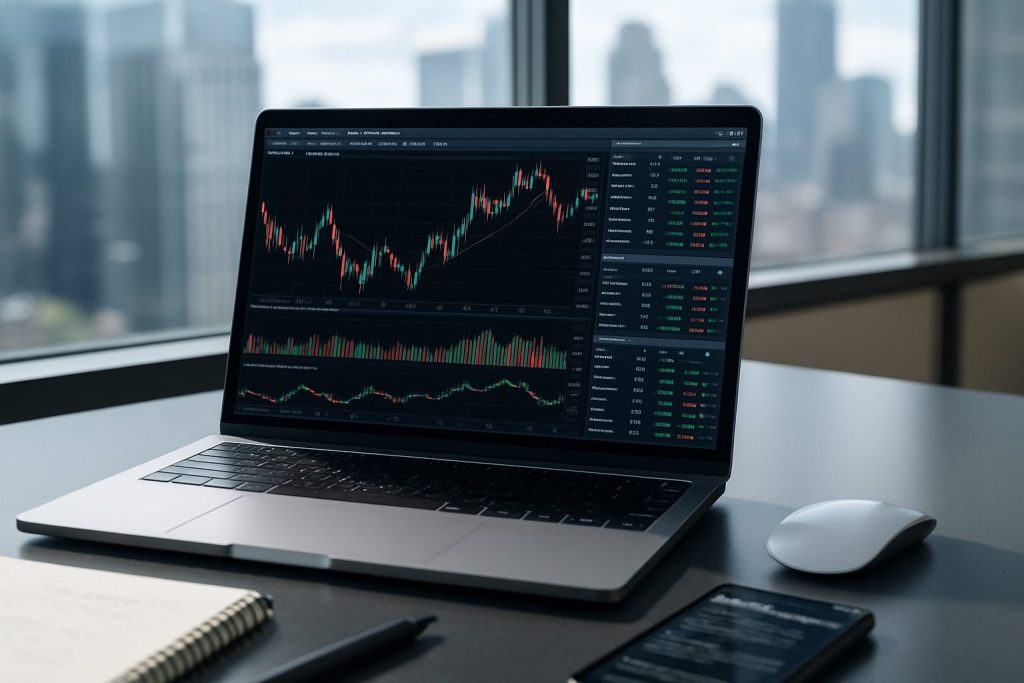
Is a MacBook good for day trading? A MacBook can be good for day trading: it offers strong performance, excellent battery life, and high screen resolution that suit active work on the stock market when paired with compatible trading software.
In volatile markets, a laptop that combines speed, reliability and portability matters as much as the trading plan. A modern MacBook delivers long battery life and crisp displays that help read fast-moving charts; however, compatibility with specific trading software and the ability to connect external monitors are decisive. For traders who value mobility and a clean interface, a well‑configured MacBook can be a resilient companion for day trading, provided one chooses the right model, configures the system for low-latency execution, and prefers web-based or native macOS platforms like those offered by Pocket Option, Quotex, and Olymp Trade. Below are practical comparisons, setup tips and real-world trade workflow examples to help choose the best MacBook setup for active market work.
Best MacBook models for day trading: performance, portability and screen resolution
Choosing a MacBook for day trading means balancing raw processing power, multitasking RAM, and a screen that shows multiple charts clearly. Traders who run multiple charts, news feeds and investment tools simultaneously need higher RAM and larger displays, while those on the move prioritize portability and battery longevity.
Key hardware attributes traders should prioritise
- Performance: prefer M3 Pro / M3 Max or M2 Pro configurations for heavy multitasking.
- RAM: 16–32GB for smooth simultaneous charting, news and data feeds.
- Screen resolution: high-resolution Retina or Liquid Retina XDR for crisp candle and indicator detail.
- Portability: lighter MacBook Air or 14–16″ Pro depending on travel needs.
- Battery life: essential for on-the-go traders to avoid mid-session downtime.
These attributes determine whether a setup feels like a dedicated trading workstation or a mobile command center.
| Model | Recommended use | Performance | Portability | Screen |
|---|---|---|---|---|
| 16-inch MacBook Pro (M3 Pro/M3 Max) | Professional day traders, multi-monitor setups | Very high — up to 64GB RAM, large storage | Less portable but powerful | 16.2″ Liquid Retina XDR (ideal for many charts) |
| 14-inch MacBook Pro (M3 Pro) | Frequent travelers who still need strong power | High — great multitasking | Good portability | 14.2″ Liquid Retina XDR |
| 15-inch MacBook Air (M2) | Mobile traders on a budget, simpler setups | Moderate — best for web-based trading software | Excellent | 15.4″ Retina (good clarity) |
Trading software on MacBook: compatibility, reliability and connectivity for the stock market
Many platforms now offer web-based or macOS-friendly apps. For day traders using Pocket Option, Quotex, or Olymp Trade, opting for the native web versions or dedicated macOS apps avoids extra layers like virtualization and reduces latency risk.
How to run trading software reliably on a MacBook
- Prefer native macOS apps or modern browser-based platforms for lower overhead.
- Use wired Ethernet or a high-quality Wi‑Fi 6 connection to minimise latency.
- Keep background apps minimal to preserve CPU and memory for the trading platform.
- Set up an external monitor via Thunderbolt/USB‑C for additional chart space.
These practical steps improve execution speed and reduce the chance of delays during high-volatility sessions.
| Platform type | Pros | Cons | Best for |
|---|---|---|---|
| Native macOS app / web platform | Low overhead, stable, direct updates | May have fewer advanced features than Windows-only desktop terminals | Most users on Pocket Option, Quotex, Olymp Trade |
| Browser-based | Cross-platform, instant access, easy on/off | Browser extensions or many tabs can cause slowdowns | Mobile traders and multi-device workflows |
| Virtualized Windows (Parallels) | Access to Windows-only tools | Higher resource use, potential latency | Traders needing a specific Windows-only indicator or legacy software |
Watching practical setups helps visualise cable routing, monitor placement, and how to keep a MacBook optimised for low-latency trading.
These tutorials demonstrate real-time workflows for macOS users and show how to troubleshoot common performance bottlenecks.
Community posts often share specific monitor arrangements and macOS tweaks that improve chart readability and workflow.
Practical day trading checklist and setup tips for MacBook users
A concise checklist reduces setup errors and keeps the focus on market opportunities instead of technical problems. The following checklist mirrors real desk setups used by traders who value speed and calm during volatile sessions.
- Hardware checks: ensure RAM, SSD and external monitor connections match trading needs.
- Network: use a wired connection when possible; backup mobile hotspot if travelling.
- Software: run only the needed browser/app, enable performance mode, and keep the OS updated.
- Risk tools: install fast order entry widgets and configure hotkeys where supported.
- Backup: configure cloud saves and a small VPS or remote machine for critical order routing if local hardware fails.
Following this checklist helps preserve reliability and reduces friction during high-pressure trades — an essential habit for consistent day trading.
Final setup insight
A strong MacBook setup for day trading pairs the right hardware choice with streamlined trading software use and disciplined network practices; this yields a reliable, portable workstation that supports rapid decision-making in the stock market.
Frequently asked questions
- Can a MacBook handle multiple live charts and data feeds?
Yes — with 16GB+ RAM and an M2/M3 Pro chip, a MacBook can run several live charts and feeds smoothly if background processes are minimised.
- Are Pocket Option, Quotex and Olymp Trade compatible with MacBooks?
Yes — all three offer web-based platforms that run well in modern browsers on macOS; where native macOS apps exist, prefer them for better stability.
- Is a MacBook better than a desktop for day trading?
MacBooks offer superior portability and battery life; desktops typically give better multi-monitor support and raw power. The right choice depends on whether mobility or maximum screen real estate is the priority.
- What minimum specs should a beginner look for?
Aim for at least an M2/M3 chip or equivalent, 16GB RAM, and 512GB SSD to start; a high-resolution external monitor is highly recommended.
- Is this content suitable for US residents?
This content does not address regulations or platform availability for US residents; check local rules and platform eligibility before opening accounts.

With over a decade of experience navigating global financial markets, I specialize in identifying trends and managing risk as a professional trader. My passion for economics drives my daily commitment to staying ahead in this fast-paced industry. Outside of the markets, I enjoy exploring technology like cryptocurrencies and new investment strategies.